
Description
Build reusable daily schedules with up to 24 entries each. Assign the same schedule to Monday through Friday, for example, then copy it to customize one day. A separate schedule can cover weekends. Timed entries have a start time, optional label, message, and optional Opening or Closing event. Messages continue until the next timed entry, including across midnight. Closing text entries add an untimed value such as “Last Call” to the public schedule without changing greetings or countdowns.
Use {time} and {tz} in messages, or {countdown} for time until the next entry. {next_label} and {next_time} describe that entry. Mark an entry as Opening to use {opening_countdown} and {opening_time}, even when the next opening is on another day. Example: a 5:00 AM message can say “It’s {time}. We open in {countdown}.” before a 7:00 AM Opening entry.
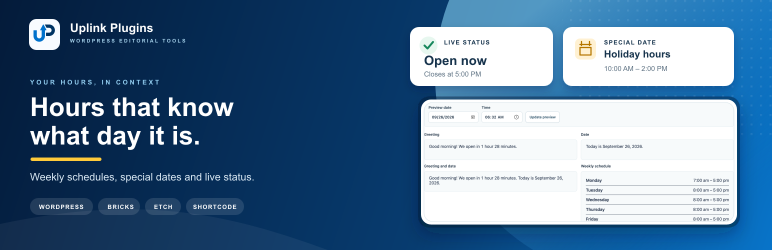
The WordPress blocks and shortcode render semantic, styleable weekly hours, live status, and special-date overrides. The dedicated Uplink Special Dates block can show one selected promotion or an upcoming list of holidays, closures, and sales dates. Bricks offers separate weekly schedule and upcoming special-date query types so each row can be designed with native layout elements. Etch receives complete outputs, computed open status, current window, next change, special dates, individual days, and an ordered week array for custom markup. Weekly schedule output uses the site’s Week Starts On setting. The timezone follows the WordPress site setting by default, with an optional override. Optional LocalBusiness structured data publishes the same regular and special hours to search engines.
Administrators can grant update access to additional roles or individual users in the Permissions tab. Administrator access is always retained.
Screenshots

Blocks
This plugin provides 2 blocks.
- Uplink Hours & Greetings Display greetings, opening countdowns, and dates from a reusable seven-day schedule.
- Uplink Special Dates Display one saved special date or a list of upcoming holidays, closures, and sales dates.
Installation
- Upload and activate Uplink Hours & Greetings.
- Open Settings > Uplink Hours & Greetings > Weekly schedule to assign daily schedules and write messages. Expand a day to assign or customize its schedule.
- Add the block, a builder dynamic tag, or a shortcode to a page.
FAQ
-
How do I set Monday through Friday hours once?
-
Create a schedule with your opening and closing entries and assign it to all five weekdays. Assign a different schedule to Saturday and Sunday. Use Customize this day to copy a shared schedule for one day.
-
How do I show a countdown to opening?
-
Mark an entry as Opening. Use {opening_countdown} in an earlier message. {countdown} instead counts to the very next time entry.
-
How do I use it in Bricks?
-
For a weekly layout, enable Query Loop on an inner Div or Block and choose Uplink Weekly Schedule. Add child elements with {ulhgr_day} and {ulhgr_hours}; {ulhgr_state}, {ulhgr_key}, and {ulhgr_today} are also available inside the loop. To load upcoming events, choose Uplink Special Dates and use {ulhgr_event_date_label}, {ulhgr_event_title}, {ulhgr_event_message}, {ulhgr_event_hours}, {ulhgr_event_link_url}, and {ulhgr_event_link_label}. The direct {ulhgr_special_label} tag only describes a special-date override active today, so it is empty on a regular date. For one upcoming event without a loop, use {ulhgr_next_special_label} with the other next_special tags listed in the How to Use tab. The Bricks picker groups tags by Direct, Weekly Schedule Loop, and Special Dates Loop. A Shortcode element with [uplink_hours_greetings display=”schedule”] provides ready-made semantic schedule output.
For a set-and-forget Bricks announcement, add a Dynamic data condition to its wrapper, enter {ulhgr_special_label}, and choose Is not empty. The wrapper is omitted on regular dates and appears automatically for the full matching special date.
-
How do I use it in Etch?
-
Add an Etch Loop block with Target options.uplink_hours_greetings.week and Item ID day. Build the row with native Etch elements and use {day.day}, {day.date}, {day.hours}, {day.state}, {day.key}, {day.number}, {day.is_today}, {day.is_special}, {day.special_label}, {day.special_link_url}, and {day.special_link_label}. Current and next special-date values are available directly without a loop. For upcoming events, loop over options.uplink_hours_greetings.upcoming_special_dates; each item includes date, date_label, label, message, hours, closed, link values, and date-state flags. The plugin’s How to Use tab lists every path.
-
Is there a shortcode?
-
Yes. Use [uplink_hours_greetings], [uplink_hours_greetings display=”status”], [uplink_hours_greetings display=”schedule”], or [uplink_hours_greetings display=”special_dates”]. For one saved date, add special_date_mode=”single” and special_date=”YYYY-MM-DD”. Upcoming lists accept special_date_limit, show_message, show_hours, and show_link. Each saved special date can include an optional destination URL and link label.
Reviews
There are no reviews for this plugin.
Contributors & Developers
“Uplink Hours & Greetings” is open source software. The following people have contributed to this plugin.
Contributors
Translate “Uplink Hours & Greetings” into your language.
Interested in development?
Browse the code, check out the SVN repository, or subscribe to the development log by RSS.
Changelog
1.1.0
- Added a dedicated Uplink Special Dates block with single-date and upcoming-list modes.
- Added special-date overrides for holidays, closures, and reduced hours.
- Added computed open status, current window, and next status change.
- Added optional LocalBusiness structured data with special opening hours.
- Added status and special-date values to Bricks and Etch integrations.
- Added an Uplink Special Dates query source for building upcoming event lists in Bricks.
- Added no-loop Bricks tags for the next upcoming special date.
- Grouped Bricks dynamic tags by direct and required query-loop context.
- Added enriched current, next, upcoming, and all-date values for Etch.
- Organized How to Use guidance into Blocks and shortcodes, Etch, and Bricks Builder tabs.
- Added an open or closed status display to the block and shortcode.
1.0.1
- Added customizable date ending punctuation, blank by default.
- Added untimed closing text for schedule values such as “Last Call.”
- Added semantic text markup and Etch end_type data for untimed closing values.
1.0.0
- Initial release with a reusable seven-day schedule, per-day customization, opening countdowns, live block and shortcode updates, Bricks and Etch data, and date controls.
- Verified with WordPress 7.1.2 and PHP 8.3.